

Start here
Outcome: a one-page map of who holds each account, who can get in, and who pays for it. Time: about an hour for the first pass (my estimate). Longer if someone else has to log in for you. Cost: $0.
Do first: look up your domain in the .au WHOIS tool (the public lookup run by auDA, which administers .au) and write down the registrant name. Leave for later: removing old users or switching providers. Map first, change second.
Done when: every account is in your organisation’s name, two of your people can manage users on each one, and you know when the domain renews.
The person who set up your website has moved on. Maybe it was a web designer who’s stopped answering emails, a staff member who left in the winter, or the volunteer who did “the computer stuff” for the club for years and has just handed it over at the AGM. Everything still works. Then a renewal notice goes to an inbox nobody reads, or a new ad agency asks for admin access to Google Analytics and nobody in the building knows what that means.
None of that is anyone’s fault, and most of it is fixable if you find it before something breaks.
What can this check tell you, and what can’t it?
It tells you who controls the accounts your website relies on, and where the gaps are. It doesn’t tell you whether your site is secure, and it isn’t legal advice about who owns a website when there’s a dispute. If you’re already in an argument with a provider about who owns what, this list is still useful evidence to take to a lawyer, but a checklist won’t settle it.
It also isn’t a blame exercise. Fragile setups often come from someone being helpful: a designer registers the domain so the site can go live on time, or a volunteer uses their own Gmail because the club didn’t have one yet. That was fine then. It’s just worth tidying up now, while everyone’s still friendly and reachable.
What’s the difference between owning an account and being able to log in?
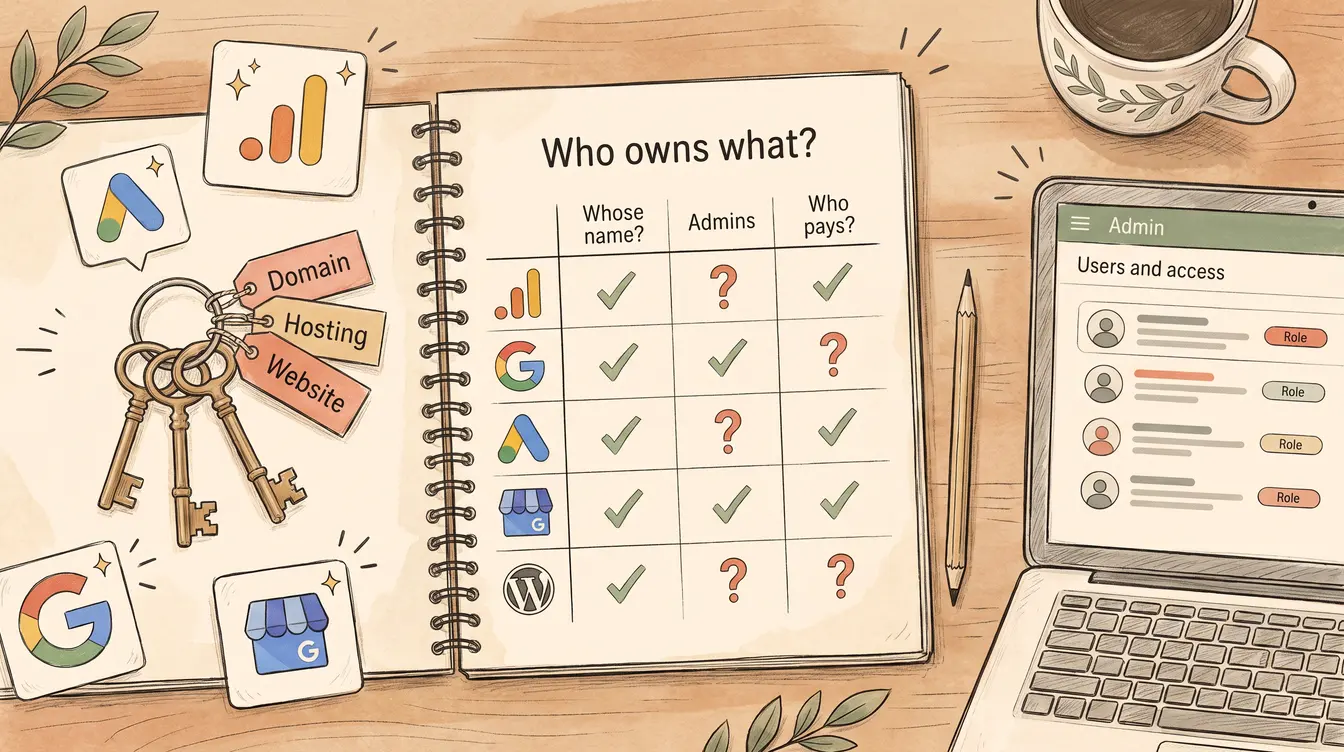
Being able to log in tells you very little. The person who can log in might be a reporting user who can look but not change anything, or an admin who can lock everyone else out. So for every account, I ask the same three questions:
- Whose name is it in? The organisation, a person, or a provider?
- Who can add or remove people? Name them. You want at least two, and both should be yours.
- Who pays, and when does it renew? Whose card, and does the renewal email reach someone who’ll act on it?
Each platform names the top role differently. Search Console calls it an owner, Google Analytics calls it an Administrator, Google Ads has an Admin access level, and a Business Profile has owners plus one primary owner. The names change; the question doesn’t. Find out who’s in the top role. On Search Console, Analytics and your Business Profile, that’s the person who can add you or remove you.
Which accounts should be on your list?
Here’s the list I’d work through, roughly in order of how badly it hurts to lose each one. You might not have all of them. Skip what doesn’t apply and add anything I’ve missed that your website depends on.
Your domain name
Start here, because everything else hangs off it. If the domain lapses, your website goes with it, and so can any email address that ends in that domain. If it sits in someone else’s name, you’re relying on them to keep renewing it and to hand it over when you ask.
For a .au domain, nobody strictly owns the name. auDA, which administers .au, puts it plainly on its key terms page: “Registrants do not own a domain name, rather, they hold a licence that allows them to use the registered domain name for the duration of the licence period.” The registrant is the person or organisation that holds that licence, and it should be you: your business, your charity, your club.
Try this: Look up your domain using auDA’s .au WHOIS tool. Check the registrant name and the registrar (the auDA-accredited company the name is registered through). If the registrant is your web designer’s business, or a person who has left, that’s your first gap.
You may have bought the domain through a reseller (often your web or hosting company) instead of directly from a registrar. That’s normal. auDA says “Every .au domain name licence has a registrar of record, even if you registered through a reseller,” and the WHOIS tool shows who that is. Write both down. The reseller is who you’d contact to change the details, and auDA says the registrar of record is the one that manages your licence in the .au registry.
One more for anyone who’s bought a business: auDA’s transfer page says “buying a business does not mean the domain name licence is automatically transferred to the new owner.” auDA says you start a transfer by contacting your domain provider.
Hosting and the website platform
This is the account where the website actually lives: a hosting company, or a website builder where the hosting comes built in. Ask whose account it’s in and whose card it’s billed to.
If it sits inside your web designer’s account alongside their other clients, that isn’t automatically a problem. Plenty of designers host client sites well. But it means leaving them later involves moving the site, not just changing a password, so it’s something to know before you need it. I wrote about this in my guide to what a website costs, because it’s one of the questions a quote should answer.
Website admin logins
Whatever your site is built on, there’s an admin login that can change the pages and add users. Check who has it.
I’d want at least two named people from your side with full admin, each with their own login. Shared logins like “admin” with the password on a sticky note make it impossible to remove one person without locking out everyone. Your designer or maintenance provider can have their own admin login as well, and that’s normal, as long as theirs is one of several logins and you’d still be able to get in and remove it the day they stopped answering.
Google Search Console
Search Console is the Google tool that shows how your site appears in Google search. Its owner role works a little differently from the others, so it’s the one I’d read most carefully.
Google’s help page on owners and users describes two kinds of owner with the same powers. A verified owner proved ownership with a token on the website (such as a small file or a code tag), and a delegated owner was added by another owner. It also warns (a “property” here is your website as Search Console sees it): “A property must have at least one verified owner, or no users will have access to the property.”
Try this: In Search Console, open Settings, then Users and permissions. Google says this page is only visible to property owners, so if you can’t see it, you’re not one. Note who the owners are and whether any are people who’ve left.
Google covers that case too: “If the only verified owner of your site leaves your team, you should verify ownership to maintain (or regain) access to the property.” That means adding a fresh verification for an account you control, using one of the methods Google offers.
Google Analytics
Google Analytics 4 (GA4) is Google’s visitor-tracking tool.
The top role is called Administrator, and Google’s roles page describes it as “Full control of Analytics.” An Editor can change settings but can’t manage users.
Administrator is also the role that can add people, and removing them needs the Administrator role at the account level. GA4 has two levels: the account, and the property (where your website’s data sits) inside it. Someone added at the account level gets the same access to every property underneath. That’s why I’d want your organisation’s own account at the top, with your website’s property inside it, rather than your property living inside an agency’s account.
Try this: In GA4, go to Admin, then Access management, at both the account and the property level. Google’s user management page says “Any user with permission can delete any other user.” Make sure two of your own people hold the Administrator role.
There’s a small safety net. Google says that “if you are the last user who has the Administrator role, you cannot delete yourself.” That protects the last admin from a slip of the mouse, but it won’t protect you from another Administrator removing your access, which is why the second admin from your side matters.
Google Ads, and any other ad accounts
If you run ads, the ad account spends money, so it matters most who’s in charge of it. Google Ads has five access levels, from Email-only up to Admin, and its access levels page sets out what each one can do. That page also warns: “If your account has only one administrator, you may lose access to your tags if that user becomes unavailable.”
If an agency runs your ads, it may manage your account from its own agency-level account (Google calls it a manager account), and that’s normal too. The thing to check is whether their manager account owns yours. Google says a manager that creates an account automatically becomes its owner, while one that links to an existing account only owns it if the account turns ownership on. Google’s page on manager account ownership says an owning manager can invite and remove users on your account and even transfer ownership to another manager account. It also says “The client account still owns its data and has the ability to remove ownership access by unlinking,” and that “It’s recommended that a manager should be made owner if and only if the manager account requires these privileges.”
So make sure someone on your side has Admin access on the ad account itself. An owning manager can still remove users, so that isn’t a guarantee on its own, which is why Google’s point about unlinking matters. If you also advertise on Facebook or Instagram, ask the same three questions of that account and its billing.
Google Business Profile
Your Business Profile is your business’s listing on Google Search and Maps. Google’s owners and managers page says “A Business Profile can have multiple owners but only one primary owner.” Owners can add and remove people and delete the profile. Managers can do almost everything else, but they can’t add or remove users or remove the profile. And if the primary owner is the one leaving, Google says they can’t remove themselves until they’ve transferred primary ownership to someone else.
Try this: In your Business Profile, select More, then Business Profile settings, then People and access. Check who the primary owner is. If it’s a person who’s leaving, Google says the profile needs at least one other owner or manager before primary ownership can be transferred, so add your replacement first.
If you can’t find a profile for your business at all, that’s a different problem, and my piece on why a business isn’t showing up on Google starts there.
Email, forms, bookings, backups and licences
These are the quiet ones. Where do enquiries from your contact form actually go? Which account sends your booking confirmations? If your site has paid plugins or a theme licence, whose email is the licence registered to? And are there backups, held somewhere other than the website itself, that someone on your side could get to?
You don’t need to understand how any of them work. You need a name and a renewal date against each, so a lapsed licence or a full inbox doesn’t quietly stop the enquiries.
How do you write it down?
One page, one row per account. A spreadsheet is fine, and so is a table in whatever document your committee or team already opens every month, because the best place for it is somewhere people will actually see it again. This is the shape I’d use:
| Account | Whose name is it in? | Who can add or remove people? | Who pays? | Renews | Rating |
|---|---|---|---|---|---|
| Domain (.au) | |||||
| Hosting / website platform | |||||
| Website admin | |||||
| Search Console | |||||
| Google Analytics | |||||
| Google Ads | |||||
| Business Profile | |||||
| Email, forms, bookings | |||||
| Backups, plugins, licences |
For the rating column I’d use traffic lights. Green means it’s in your organisation’s name, two of your people can manage users, and you know who pays. Amber means it’s yours, but only one person can manage it, or the renewal goes to an inbox nobody watches. Red means it’s in someone else’s name, nobody on your side can manage users, or you can’t find it at all.
Blank boxes are useful. A row you can’t fill in is exactly what you need to ask about. Fix the reds first.
The map holds who and when. It never holds passwords. Logins belong in a password manager that more than one person can get into, and the map can say which one. A spreadsheet of passwords emailed around the committee is a bigger risk than the problem it’s solving.
How do you ask your provider for access without starting a fight?
I’d ask plainly, put everything in one message and give a reason that doesn’t sound like an accusation. Something like this:
Hi [name], we’re putting together a list of the accounts our website depends on, so we’re not stuck if someone’s away or leaves. Could you help us check a few things? Whose name the domain is registered to, and whether it could be moved into [organisation name] if it isn’t already. Whether [two names and emails] could be added as admins on the website, Google Analytics, Search Console, Google Ads and our Business Profile. And when each paid account renews and who it’s billed to. Happy to keep you on as an admin too. Thanks for setting all this up.
Keep the provider’s own access in place while you do this, because the aim is to add your people alongside theirs, and a provider who still has a login can keep fixing things for you in the meantime. If the answer is slow, follow up once, politely. If it’s “no” on the domain, that’s a red on your map and a conversation worth having properly.
What shouldn’t you do in a panic?
When you find a red, a few moves feel decisive and make things worse, usually because they cut off the one route back in before you’ve built a new one:
- Removing the old provider before you’re in. Get your own owner or Administrator access confirmed first, then decide whether anyone needs removing.
- Deleting code you don’t recognise from the website. Search Console’s owner verification can be a tag on your site, and Google says removing a verified owner’s token is how they get unverified. If that’s the only verified owner, Google says everyone else loses access after a grace period, and nobody gets back in until someone verifies again.
- Letting the domain lapse to force the issue. Your website and possibly your email go down with it.
- Opening a brand-new analytics or ad account to get around a lock-out, before you know what you’d be leaving behind in the old one.
Look, I get the urge to tidy everything in one go. But a slow, boring handover beats a fast one every time, to me anyway.
When is it worth getting help?
Most of this you can do yourself, and I’d rather you did, because you’ll understand your own setup better afterwards.
It’s worth getting a second pair of eyes when the map has several reds, when nobody can work out where an account even lives, or when you’re about to change web designers or agencies and want the handover done properly the first time.
My Digital Health Check has a whole pillar for this, called Safety, Privacy, Access & Handover. The free Basic version reads the public side of your setup. Some of this needs a look inside your accounts, which is the In-Depth version, and you can remove my access at any time. A few things, like Search Console’s owner list, only show to an owner, so those stay on your side of the checklist. If you’re planning a rebuild anyway, my web design page explains how I host and look after the sites I build, and if you’d rather someone kept an eye on the site you already have, that’s website maintenance.
If the problem is a dispute about who owns the website itself, or an account that’s been taken over, that needs a lawyer or the platform’s own support team first.
I can help map what you’ve got, but I can’t recover an account I don’t have the authority to touch.
Tools & Resources
Free tools
- .au WHOIS tool - auDA’s lookup for who holds a .au domain licence and who the registrar is
- Google Search Console - Settings, then Users and permissions, shows the owners (if you’re one)
- Google Business Profile - More, then Business Profile settings, then People and access
Checklists & templates
- The access map - the one-page table and the red, amber and green ratings
- The access request email - a calm note to send your current provider
- What not to do in a panic - four moves to avoid while you sort it out
Further reading
- Search Console owners and users - verified versus delegated owners, and what to do if the only verified owner leaves
- GA4 access and roles - what Administrator, Editor and the other roles can do
- Google Ads access levels - who can add people, and the single-admin warning
- Business Profile owners and managers - primary owner, owners, managers, and how to add someone
- auDA: registrants, registrars, resellers and the registry - who’s who in a .au domain, in plain English
- auDA: transfer your .au domain name - moving the licence to your organisation, or to a new provider
- Google Ads manager account ownership - what an owning agency account can and can’t do
- How much does a website cost in Australia? - the quote questions, including who’ll hold the domain and hosting
Do the map once, while the person who set everything up is still answering emails. Put the domain renewal date in the calendar, give the page to whoever takes over next, and the next handover starts from a page instead of a scramble.